Setting up AutoPay is a simple and convenient way to manage your account and ensure your payments are always made on time.
Smartaira operates with paperless billing, and all accounts are required to have AutoPay enabled. Please note that your first payment must be made manually before AutoPay can begin.
Getting Started
Before setting up AutoPay, you’ll need access to your Smartaira Portal.
Step 1: Create Your Smartaira Portal Account
- Visit the Smartaira Portal and select Sign Up
- Use the same email address you provided when setting up your service
- Review and accept the Terms & Conditions
If you’re unsure which email to use or need assistance, our team is happy to help.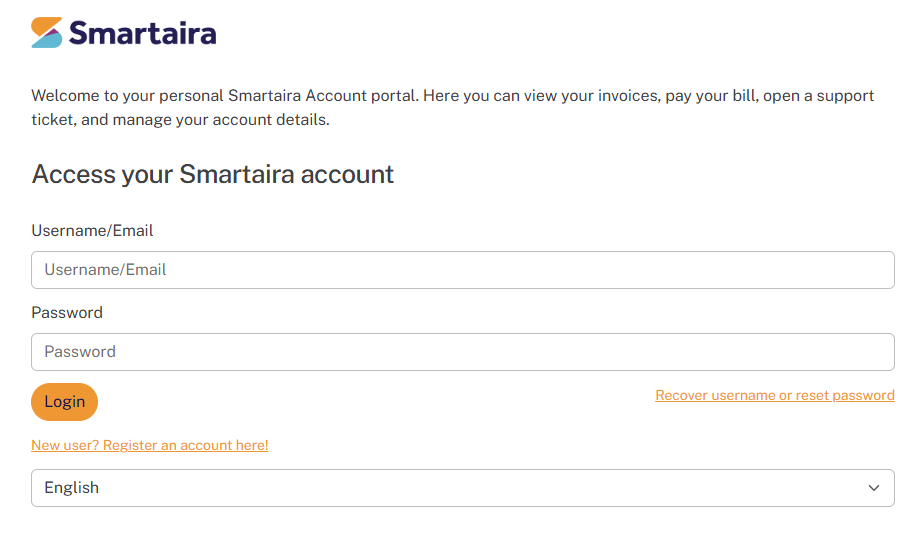
Step 2: Log Into Your Account
- Sign in using your email and password
- If needed, use the Forgot Password option to reset your login information
Setting Up AutoPay
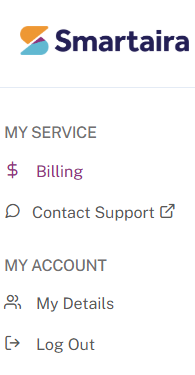
Step 3: Navigate to Billing Settings
- Go to the Billing or Payment Settings section within the portal
- Select the option to enable AutoPay
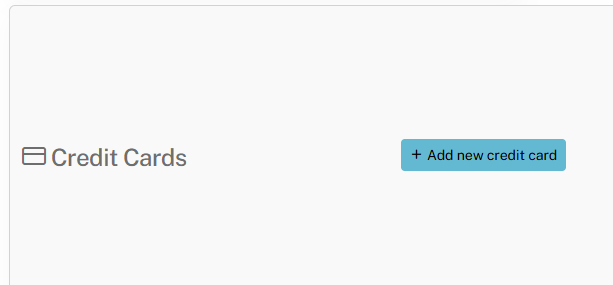
Step 4: Add Your Payment Method
- Enter your credit/debit card information
- Double-check that all details are accurate to avoid payment issues
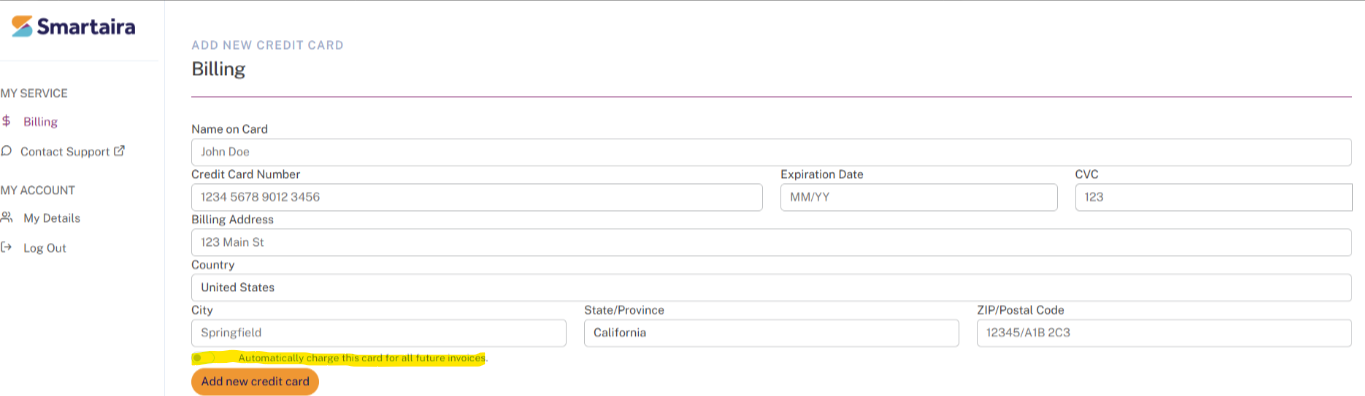
Step 5: Confirm AutoPay
- Review your payment settings
- Confirm that AutoPay is enabled
- Save your changes
Step 6: Make Your First Payment
Your first payment must be completed manually through the portal.
After your initial payment is made:
- AutoPay will be activated
- Future payments will be processed automatically on your due date
Need Help?
If you have any questions or need assistance setting up AutoPay, our Smart Desk is available 24/7 to help.
- Log into your Smartaira Portal and submit a Support Ticket
- Email us at support@smartaira.com
- Call us at (310) 974-8776
We’re here to make managing your account as easy and seamless as possible.
Was this article helpful?
That’s Great!
Thank you for your feedback
Sorry! We couldn't be helpful
Thank you for your feedback
Feedback sent
We appreciate your effort and will try to fix the article